
Setting up the Dialpad integration in GOCare Connect
Quick Summary
Setting up Dialpad's Voice Integration in GOCare Connect connects a contact center's terminating number to a matching shared inbox in GOCare Connect. Once set up, calls route directly into the shared inbox with the same context and history as every other channel.
Identify the Terminating Numbers
A Dialpad Admin should complete the following steps:
Identify the existing contact centers currently used in Dialpad (e.g., CSR, Business CSR, NOC, etc.).
Confirm the DID terminating number for each contact center that will be set up in GOCare Connect.
How Contact Centers Connect to GoCare Connect
Every Dialpad contact center that should ring into GOCare Connect needs its own shared inbox, connected to the matching Dialpad channel. A few rules govern how this works:
Admin permissions are needed in both Dialpad and GOCare Connect to configure the channel.
The admin setting up the channel in GOCare Connect must use the same email address used in Dialpad.
Agents must exist in Dialpad with access to the same terminating number in order to answer calls in GOCare Connect.
Agents must be logged into GOCare Connect using the same email address used in Dialpad.
Only contact center numbers need to be connected. Personal desk lines or individual DIDs are optional and are connected separately by each user.
Connecting a Dialpad Channel: Step by Step
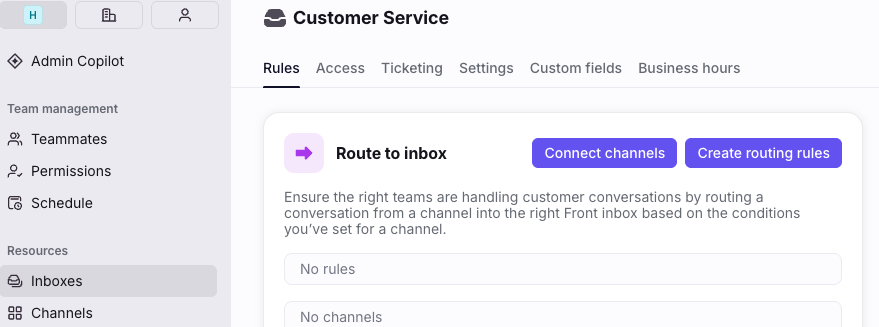
In GOCare Connect, go to Settings>Inboxes and create a new shared inbox for the contact center.

Limit access to the inbox to the GOCare Admin, company admins, and the corresponding teammate groups.
Save the inbox, then select Connect a channel and search for Voice by Dialpad,
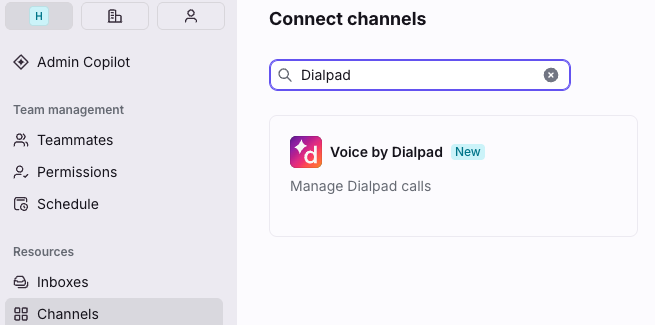
Sign in to Dialpad with admin credentials and authorize the GOCare Connector's access.
Select the specific contact center number that corresponds to this inbox.
Note: If the contact center you're looking for doesn't show up in GOCare Connect, it's because no number is assigned to it in Dialpad yet.
Key Considerations
Matching admin emails is non-negotiable. The Dialpad company admin and GOCare Connect company admin must share teh same login email for the connection to work.
Agent status syncs from Dialpad. An agent's availability in GOCare Connect reflects their Dialpad status.
GOCare Connect's Dialpad integration is not feature-equivalent to native Dialpad app. Agents can answer, mute, hold, transfer, and pull the call recording or transcript, but there's no AI agent assist, coaching cards, or screen takeover inside GOCare Connect.
Recommended: Connect a separate inbox for each unique language you support, and grant agents access to the inboxes as needed.
Troubleshooting & FAQs
Q: A contact center doesn't show up in the list when I go to connect a channel. Why?
A: This almost always means no number is assigned to that contact center in Dialpad yet. Have the Dialpad admin assign one (a spare local number from their pool works fine) and refresh the page.
Q: We see the same contact center listed twice with different numbers. What's going on?
A: This usually means the contact center has both a primary number and a separate SMS number assigned. GOCare only needs the primary voice number — the SMS-designated number can be ignored or removed if it's not actually in use.
Q: Do we need a number on every contact center, even ones customers can't dial directly, like an internal NOC line?
A: Only if you want that contact center's calls to appear in GOCare Connect. Purely internal lines, such as field techs calling into a NOC, don't need to be connected unless someone wants to manage those calls in GOCare Connect too.
Q: If a Spanish-speaking agent is out and an English-speaking agent has to cover, will they be able to see the customer's history?
A: Regardless of which inbox handled a past conversation, all of a contact's communications — across every channel and language — appear together in the Contacts panel, so any agent covering for another agent can see the full history.