
Managing Tech-on-the-Way
Quick Summary
This article explains how to manage the org hierarchy in GOCare Messenger. It covers how to update technician records, maintain the identifiers that let Tech-on-the-Way messages reach customers, and add technician photos so they display correctly when a technician is en route.
What are Tech-on-the-Way messages?
Tech-on-the-Way messages automatically send a photo of the assigned technician to the customer when that technician is on their way to the customer's home. This gives customers a friendly heads-up and helps them recognize who's arriving. For these messages to send, two things must be in place: the technician has to be correctly identified in the org hierarchy, and each technician must have a photo saved to their record.
Where to update the org hierarchy
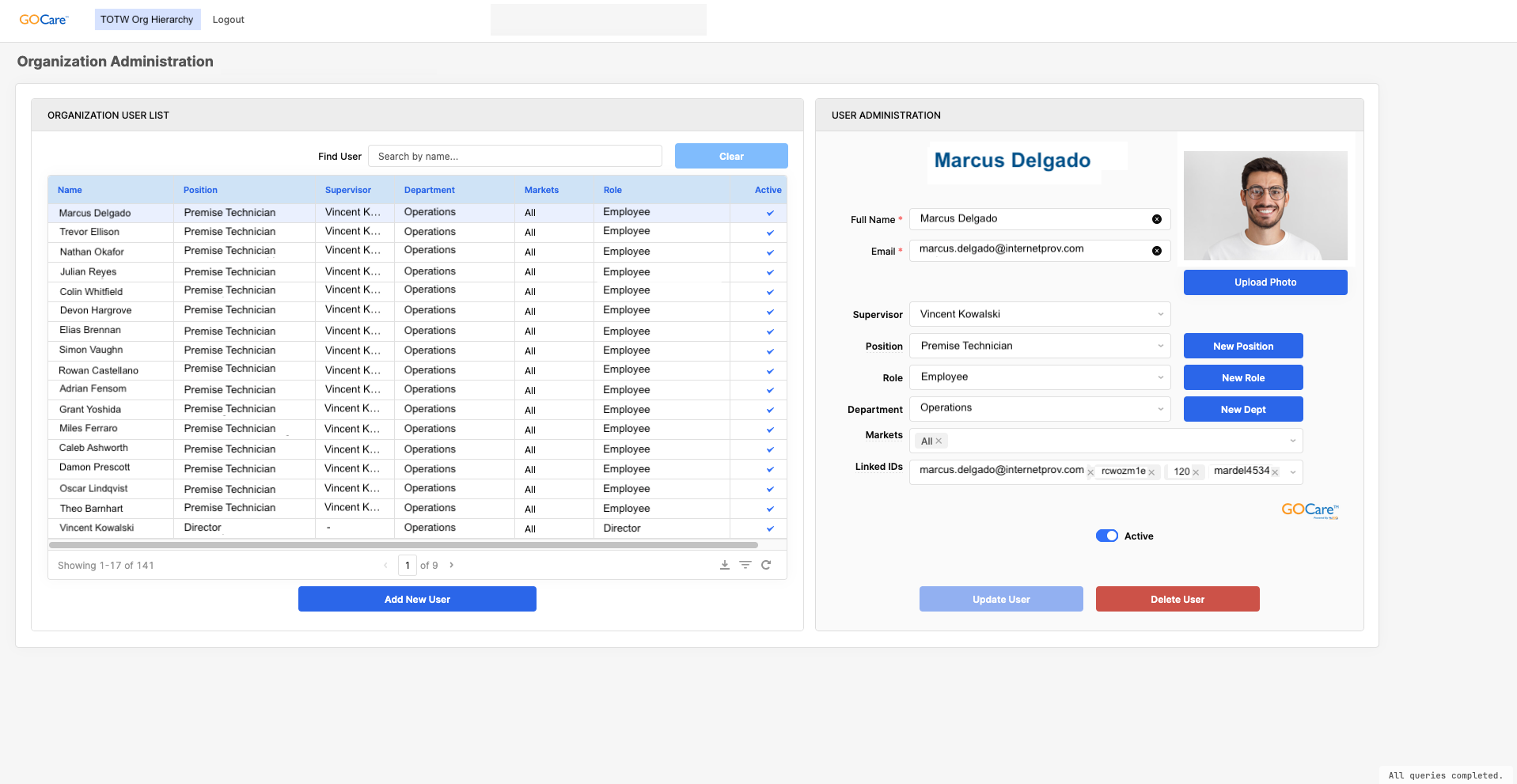
All org hierarchy updates take place in the Org Users tab within the dashboard. This is accessible after logging in at app.gocare.io.
Why the org hierarchy matters
Tech-on-the-Way relies on two things working together. First, the technician has to indicate in the BSS that they are on their way to the customer. Second, the org hierarchy has to connect that dispatched technician to their record, so the right message and photo reach the right customer. The data in this tab handles that second part.
⚠️ Warning: If the org hierarchy is outdated or misconfigured, Tech-on-the-Way messages may not send, even when a technician has been dispatched.
Org hierarchy requirements
To ensure Tech-on-the-Way messages send correctly, the org hierarchy must include the right people, identifiers, and photos.
Who to include
Frontline technicians – Any technician who may be dispatched to a customer's home and should appear in a Tech-on-the-Way message.
Supervisors and managers – The leadership for those technicians. For example, if Joe is a technician and his supervisor is Jimmy, both Joe and Jimmy should be included as records.
Why it matters
Ensures each Tech-on-the-Way message shows the correct technician.
Allows reporting at both the individual and team/manager levels.
Keeps dispatch and messaging aligned across the organization.
Linked IDs
Each frontline technician must have one or more Linked IDs listed in their record. These are the identifiers from the systems you use that connect a dispatch back to the right technician.
Examples include:
IDs from your billing or field management system
Dispatch or work order usernames
💡 Tip: Including Linked IDs ensures Messenger can match a dispatched technician to the correct record, even if multiple systems are in play.
Technician photos
In addition to Linked IDs, each technician must have a photo added to their record. The photo is what appears in the Tech-on-the-Way message the customer receives. If a technician does not have a photo saved, the message cannot populate for that technician.
Photos must first be stored somewhere your team can access, such as Google Drive or a local computer, and then uploaded to each technician's record. Messenger cannot connect to an outside server to pull images automatically. Every photo is uploaded and saved to the record manually.
What to do
Use the provided Org Hierarchy template to list all relevant technicians and their reporting relationships. This file will serve as the foundation for how technicians are identified and messaged in Messenger.
How to add or edit employees
To manage employees:
Navigate to the Org Users tab
Use the table interface to:
Add new employee records
Update fields like department, supervisor, role, or market
Add or update each technician's photo
Delete employees who have left
Each row in the table represents an individual employee.
Understanding the Linked IDs field
The Linked IDs field is the most critical part of the org hierarchy. This is how Messenger knows which technician is on the way to a customer.
This field must include:
The employee’s email address
Any other system usernames tied to dispatch
Examples of other identifiers:
Internal usernames from CDG or Omnia (Any supported BSS)
Dispatch or field management usernames
Other system-specific values tied to a technician being sent to a customer
💡 Tip: If this field is missing or incorrect, Messenger will not be able to send a Tech-on-the-Way message for that technician.
What happens if data is added later?
Because Tech-on-the-Way messages are time-sensitive, they are only sent while a technician is actually en route. The Linked ID and the photo affect this differently:
If the Linked ID is missing or incorrect, Messenger can't match the dispatched technician, so no message is sent for that dispatch. It can't be sent after the fact.
If the photo is missing, the message still sends while the technician is en route, however it will not include the technician's photo.
Once the correct Linked ID and photo are added, future dispatches will send complete messages with the photo included.
GOCare’s onboarding process
During onboarding, GOCare loads the org hierarchy once using a spreadsheet provided by the client. This is considered the "initial import." Clients are expected to maintain the org structure themselves from that point forward, including keeping technician records and photos up to date.
Exceptions may be made on a case-by-case basis.
Best practices for ongoing updates
To keep Tech-on-the-Way working as expected, we recommend:
Assigning a point person to maintain this tab regularly
Updating records whenever technicians are added, removed, or reassigned
Adding a photo for each new technician as soon as they're added
Verifying that all dispatch systems are accounted for in the Linked IDs
💡 Tip: Ask your internal billing or dispatch teams what usernames are associated with technician dispatches. These will often need to be included as Linked IDs.