
Scheduling Maintenance – GOCare OutageIQ
Quick Summary
Planned maintenance is a normal part of maintaining a reliable network. Unlike outages, maintenance events are known ahead of time and give service providers the opportunity to proactively communicate with subscribers before any service impact occurs.
OutageIQ enables teams to schedule maintenance events in advance, identify affected subscribers, and automatically notify them based on a defined maintenance window. These events follow a predictable lifecycle that ensures subscribers receive consistent and timely information.
This article explains how to schedule a maintenance event in OutageIQ.
What Is a Maintenance Event?
A maintenance event is a planned notification that informs subscribers of upcoming work that may affect their service.
When you schedule maintenance:
Subscribers receive advance notice of the planned work
Subscriber status changes to MAINTENANCE when the event begins
The event appears in the dashboard and Event Timeline
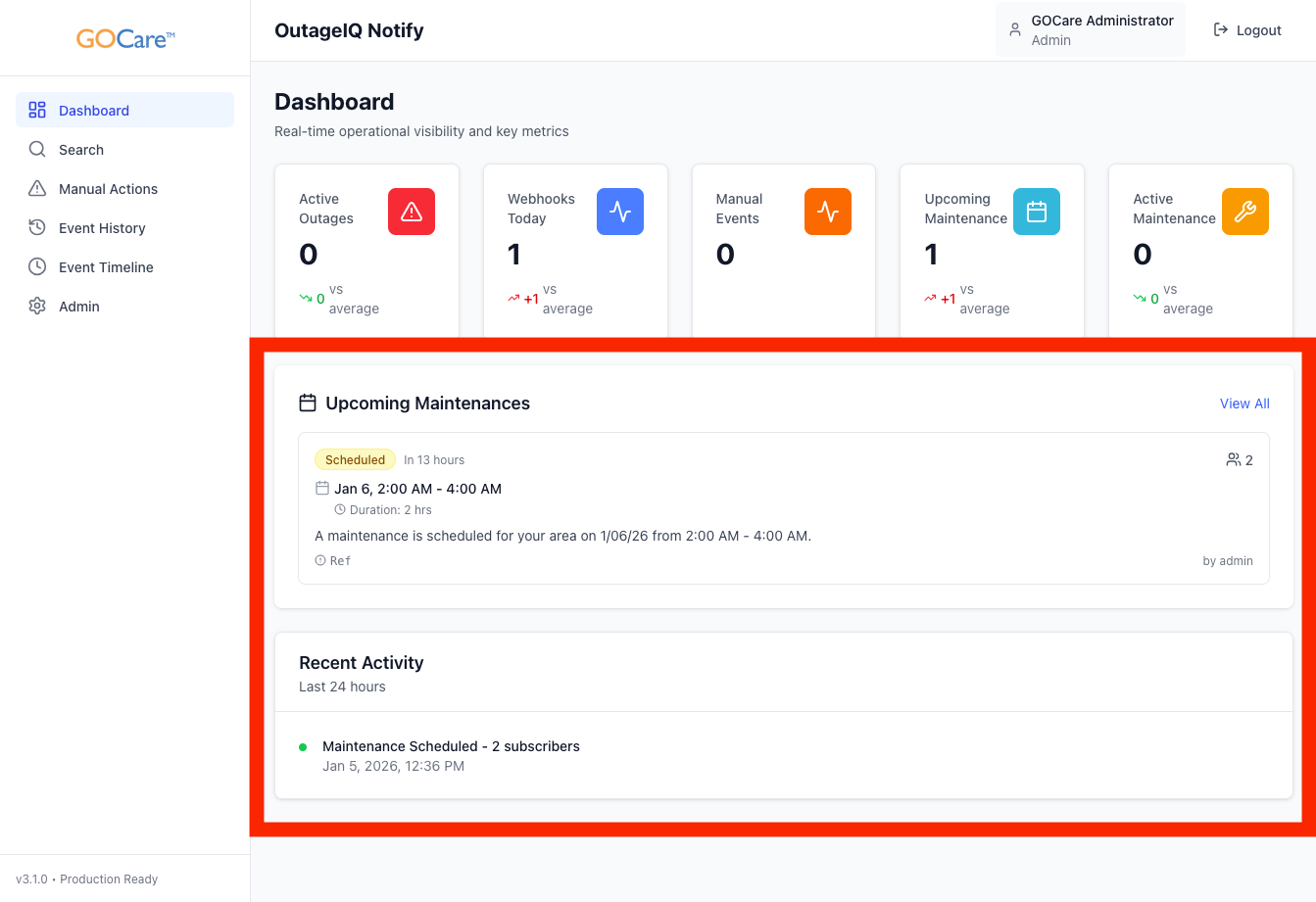
Subscribers return to NORMAL when maintenance is cleared
Maintenance events are managed separately from outages and should be used only for planned work.
How to Schedule Maintenance
To schedule a maintenance event, follow these steps:
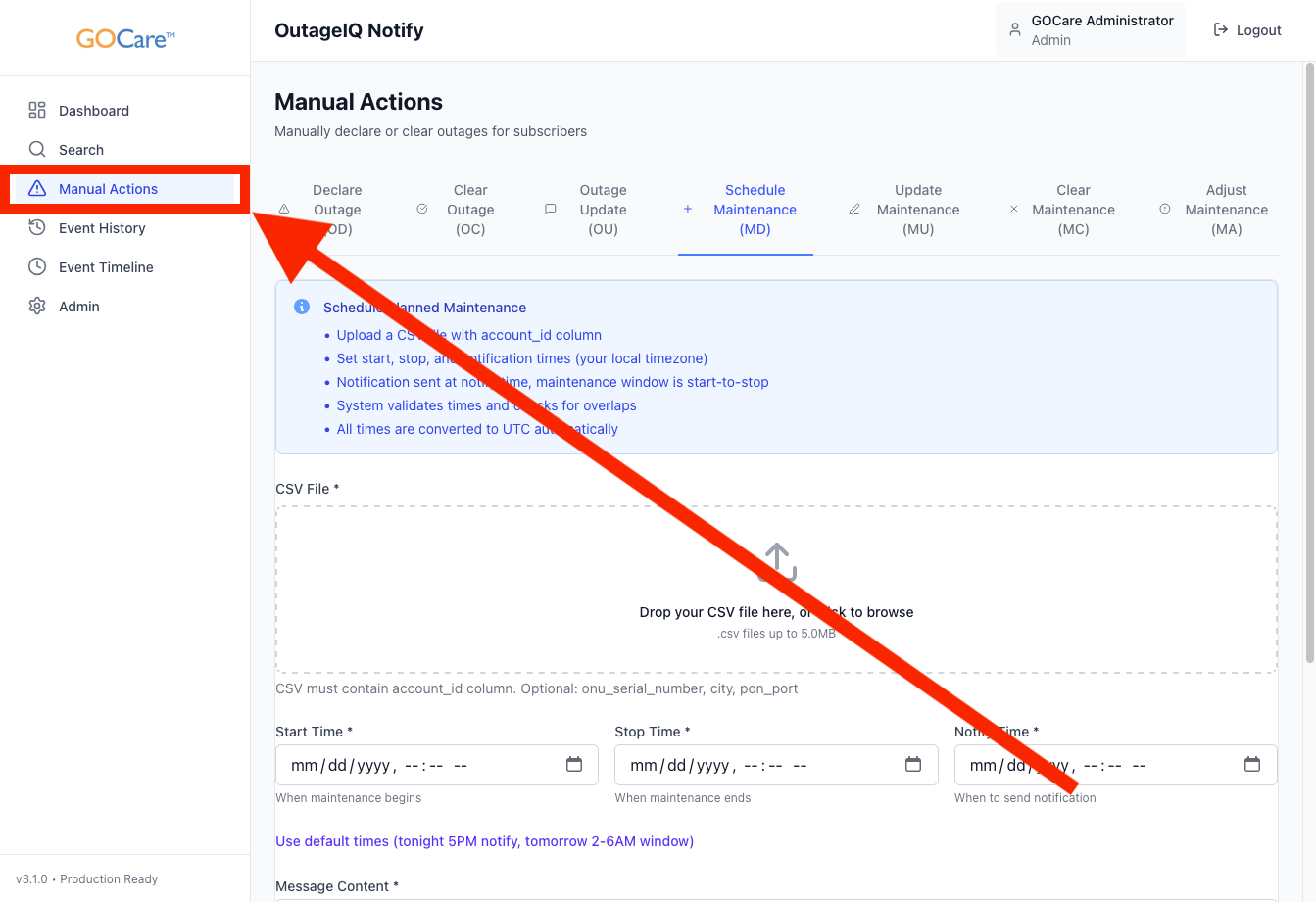
Select Manual Actions from the OutageIQ sidebar.
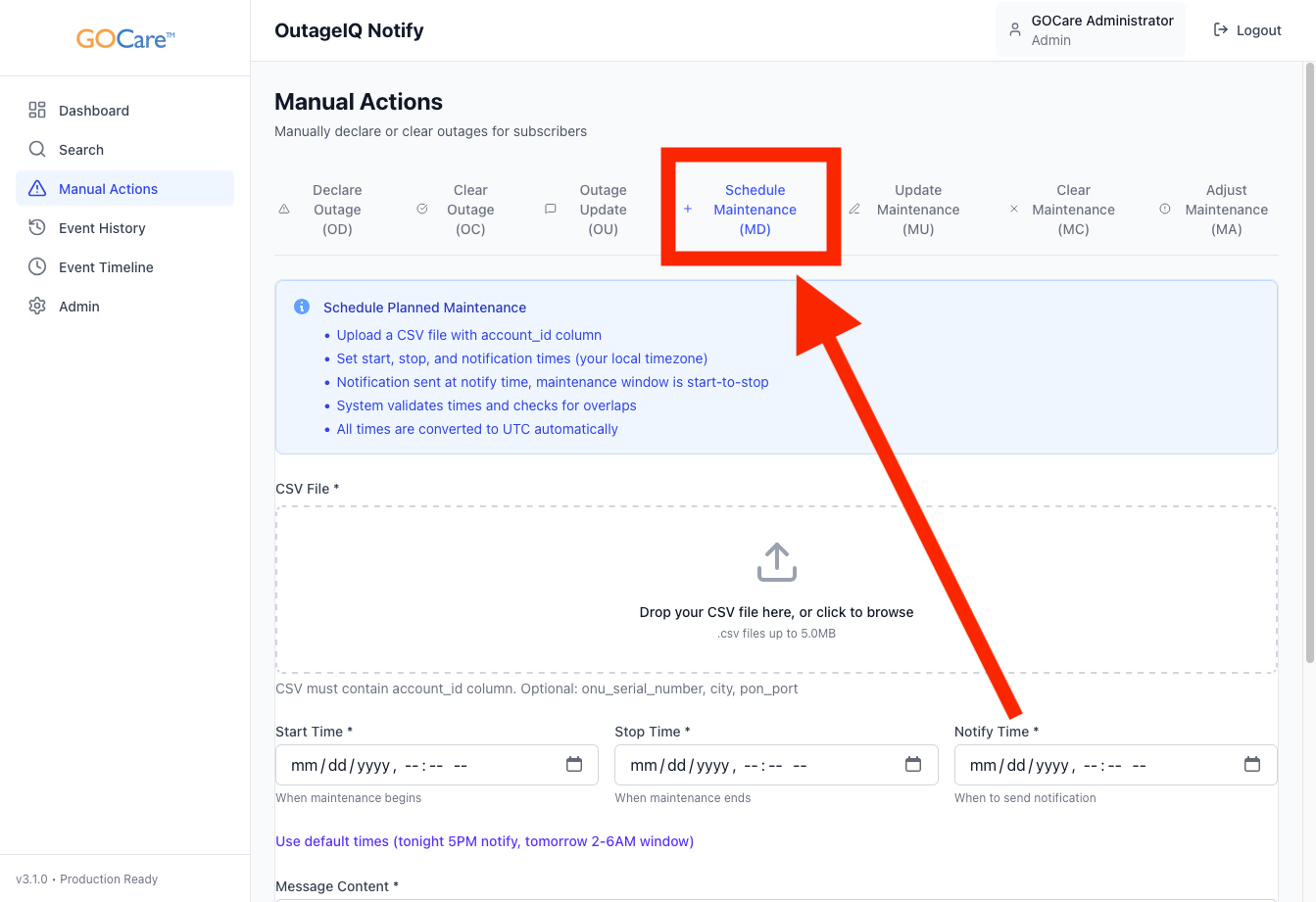
Select Schedule Maintenance (MD).
Upload your CSV file.
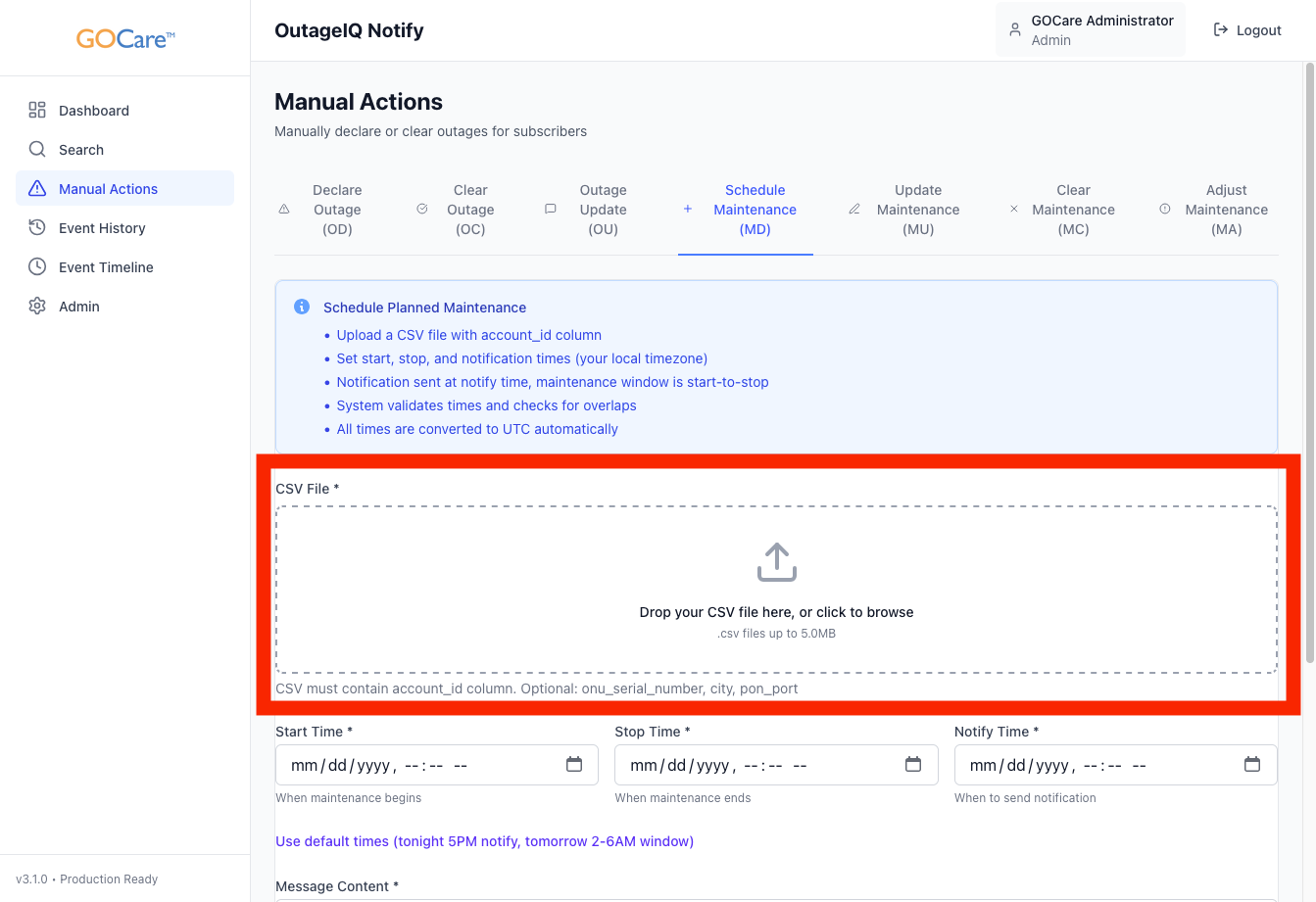
OutageIQ requires a specifically formatted CSV file and will not produce proper declarations without properly formatted data.
The CSV must contain the following columns without variation:
| | | |
Only the “account_id” column is required to schedule a maintenance; however, the remaining fields are strongly encouraged for improved data consistency and service accuracy.
These formatting requirements, along with an example file, appear at the bottom of the interface. You may copy and paste the example into Microsoft Excel or Google Sheets, or download a template from the bottom of this article.
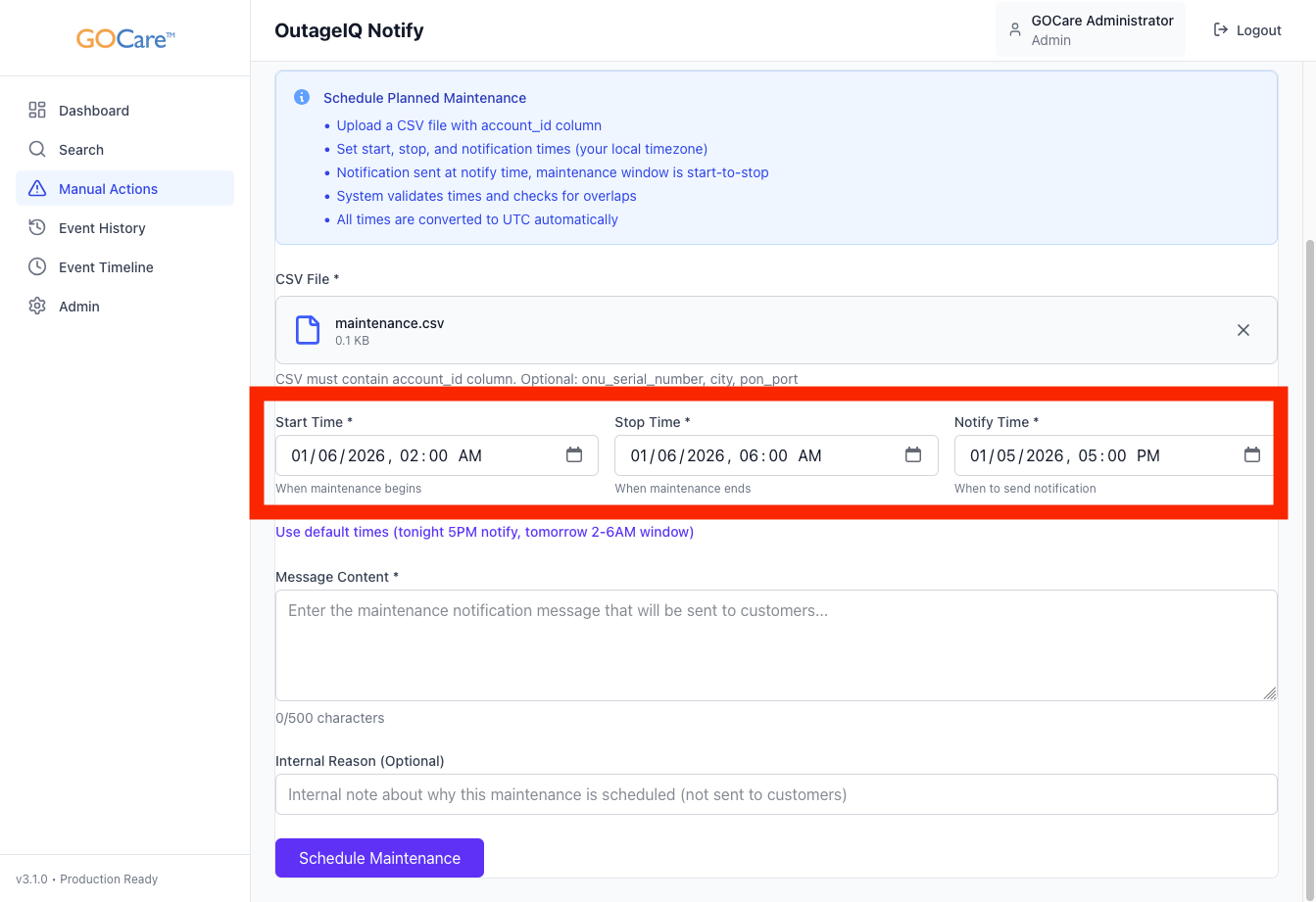
Enter the maintenance window start and end times, as well as the notify time.
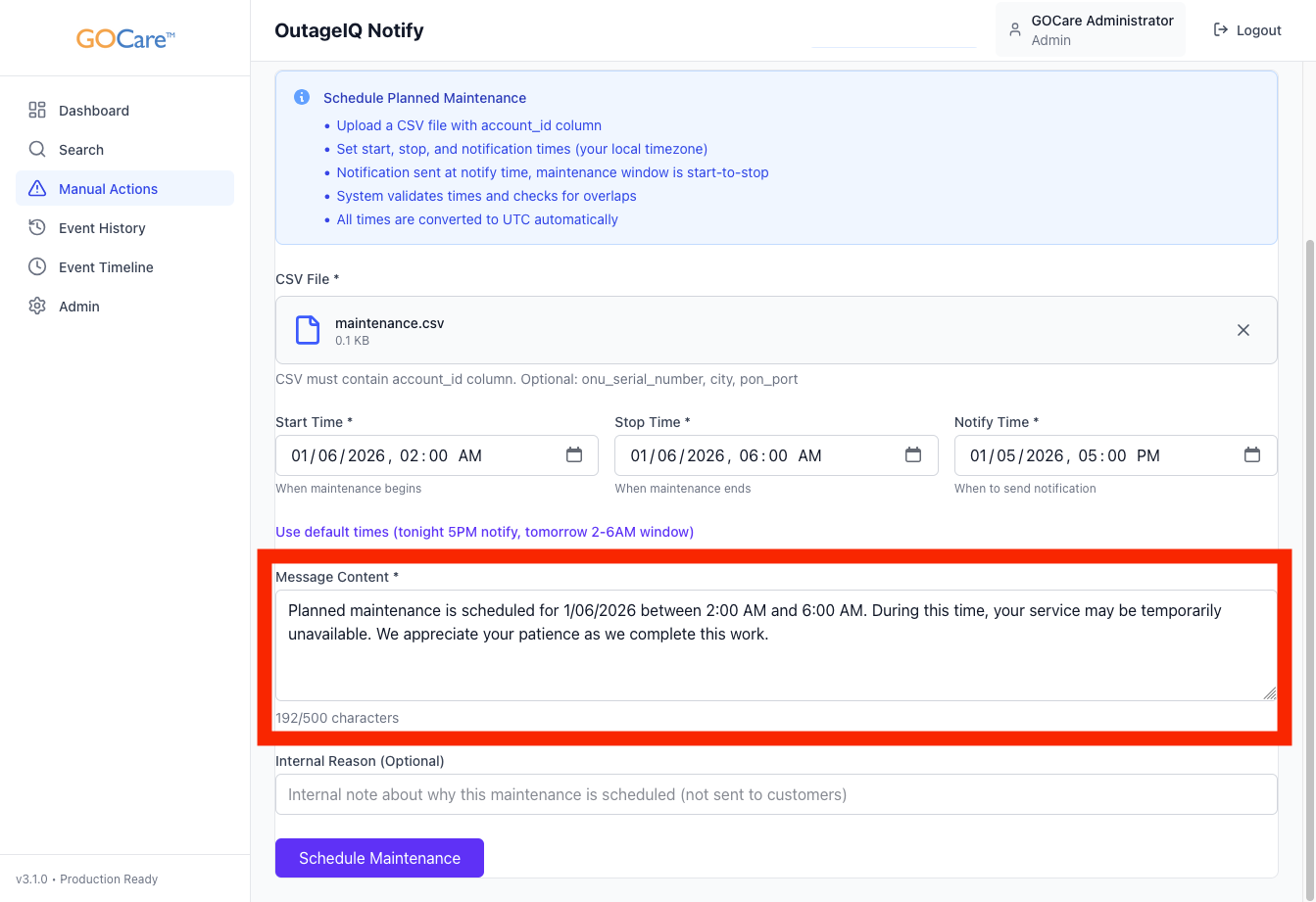
Enter the maintenance notification message that will be sent to customers.
(Optional) Provide a internal maintenance reason or description.
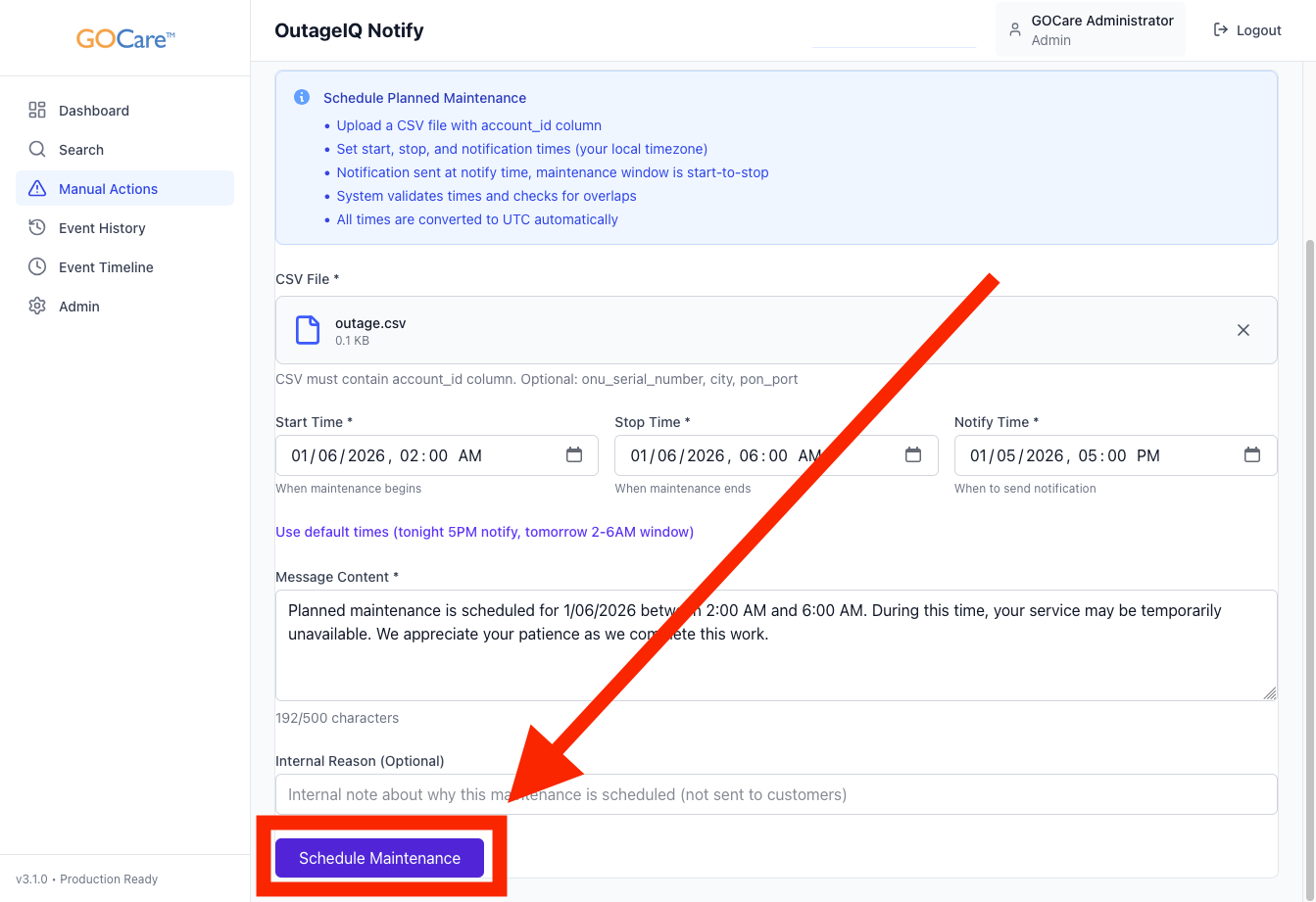
Select Schedule Maintenance.
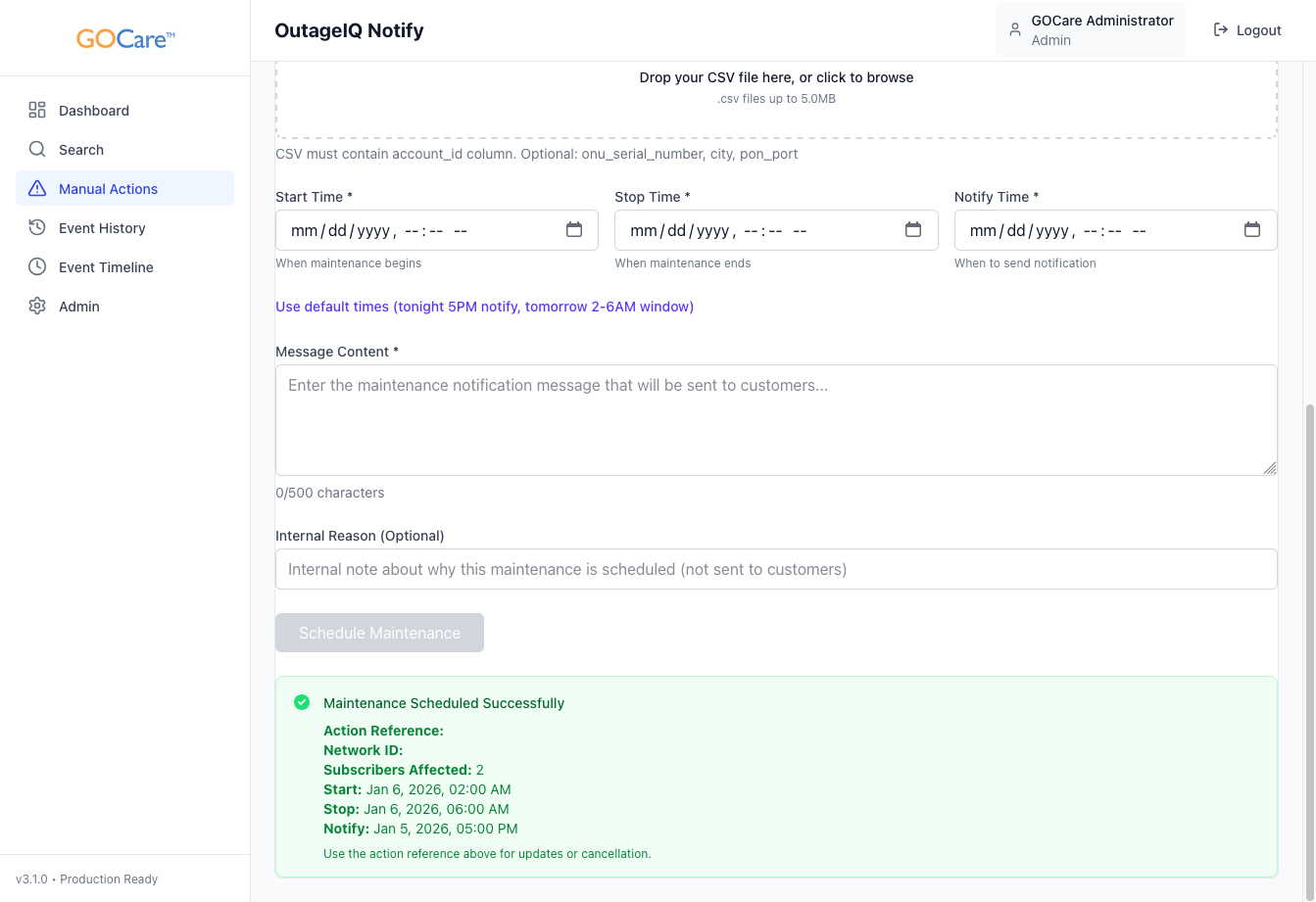
A green success box will indicate that the maintenance event has been scheduled successfully.
What Happens After Maintenance Is Scheduled
After a maintenance event is scheduled:
The event appears in the dashboard and Event Timeline
Subscribers receive advance notification based on the scheduled window
Subscriber status updates automatically when the maintenance window begins
Operators can monitor the event until maintenance is completed
Additional actions, such as sending updates, adjusting the window, or clearing maintenance early, are handled through separate workflows.
Best Practices
Schedule maintenance as early as possible to give subscribers adequate notice.
Double-check subscriber lists before submitting the event.
Use clear, concise language in maintenance messages.
Avoid scheduling maintenance windows longer than necessary.
Coordinate with support teams so they are prepared for subscriber questions.