
Providing Updates During an Outage – GOCare OutageIQ
Quick Summary
Outage Updates allow you to send informational messages to subscribers during an active outage without changing their outage status. Updates help keep customers informed while restoration work is still in progress.
What Is an Outage Update?
An outage update is an informational message sent to subscribers who are already part of an active outage.
When you send an outage update:
The outage remains active
Subscriber status stays OUTAGE
No new subscribers are added or removed
The update applies to the entire outage group
Outage updates are designed to communicate progress, delays, or changes in expectations without resetting or resolving the outage.
How to Send an Outage Update
To send an update for an active outage, follow these steps:
Select Manual Actions from the OutageIQ sidebar.
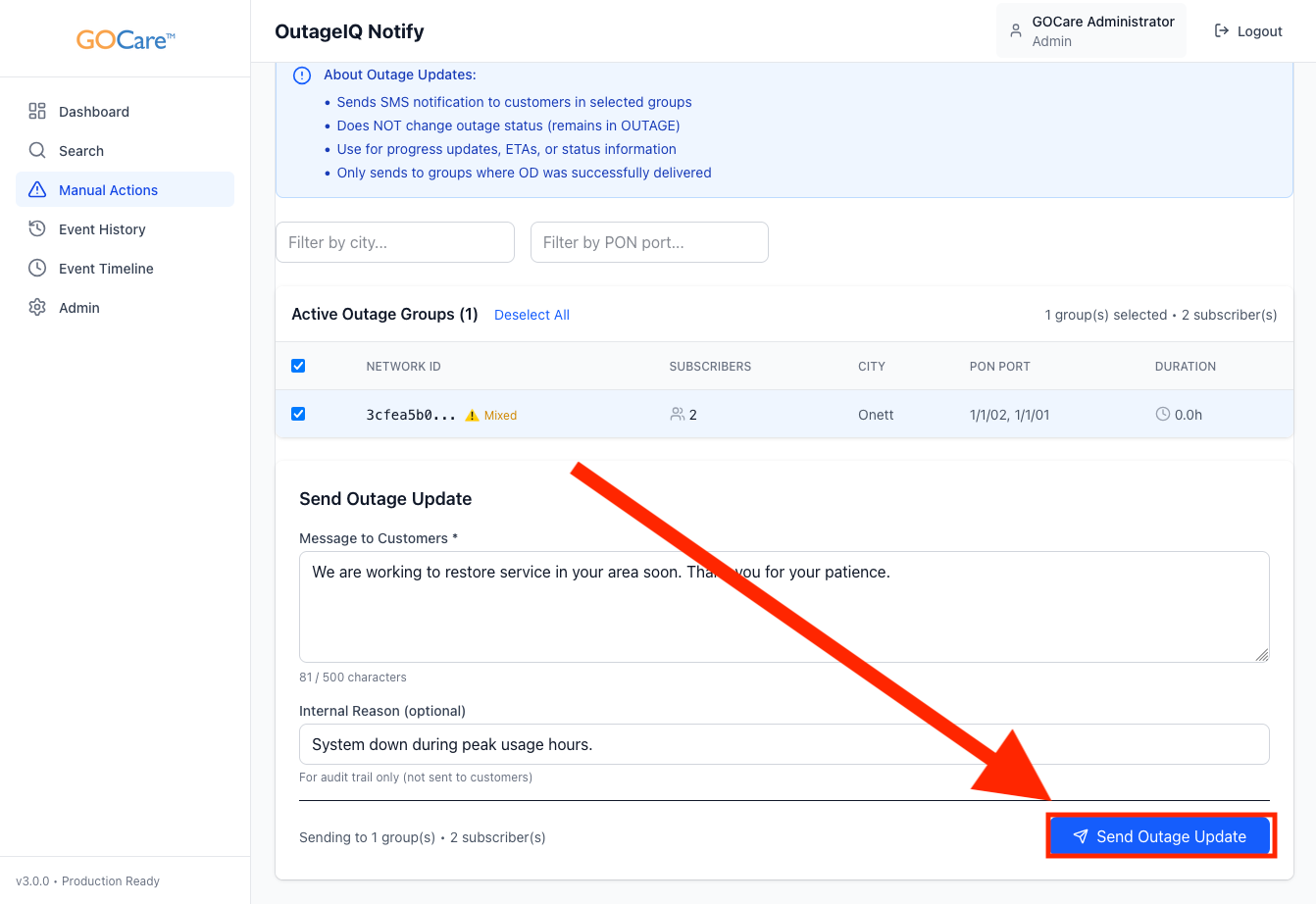
Select Outage Update (OU).
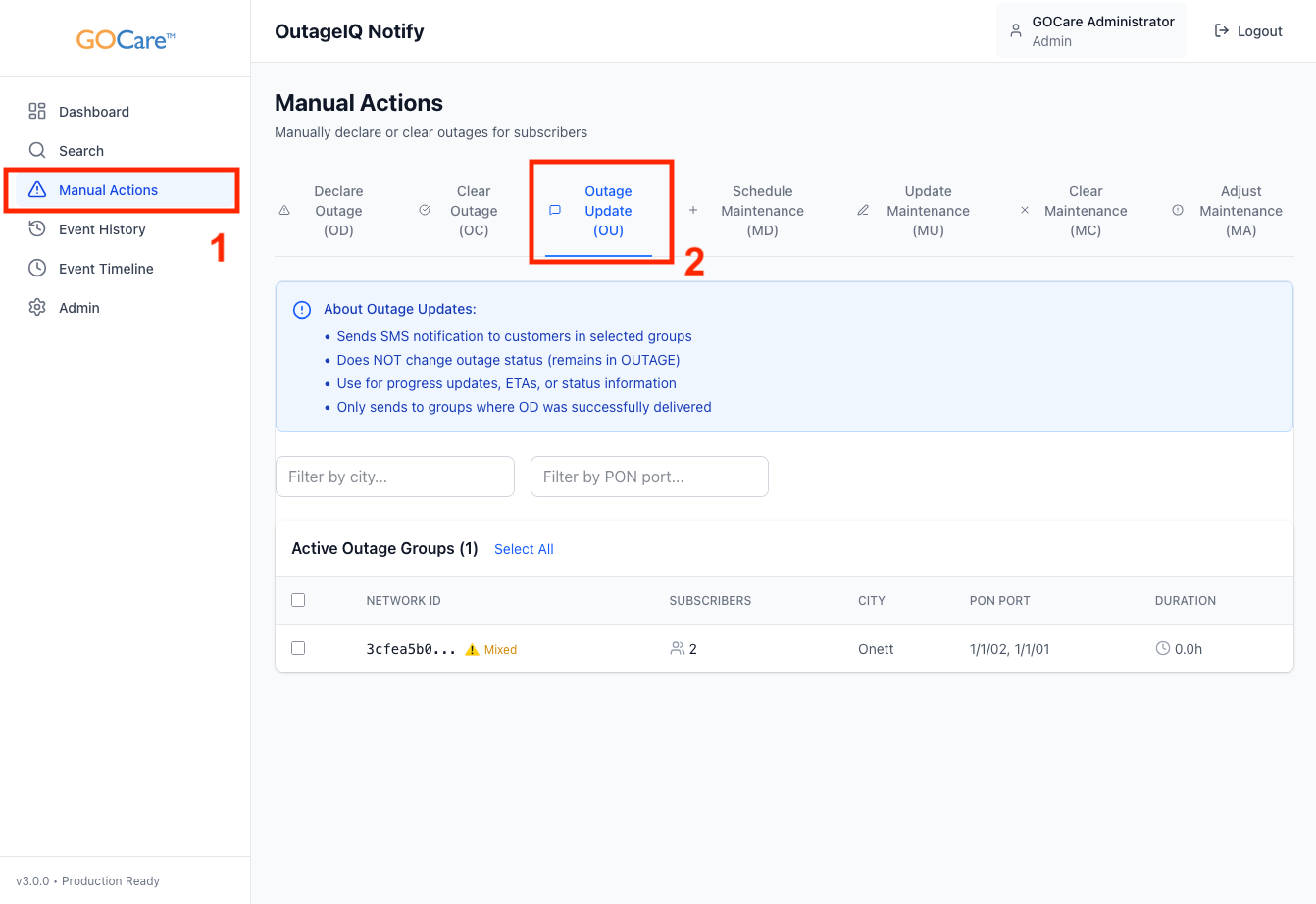
A list of active outage groups will appear. Each group represents subscribers included active outage declarations.
Select the outage group you want to update.
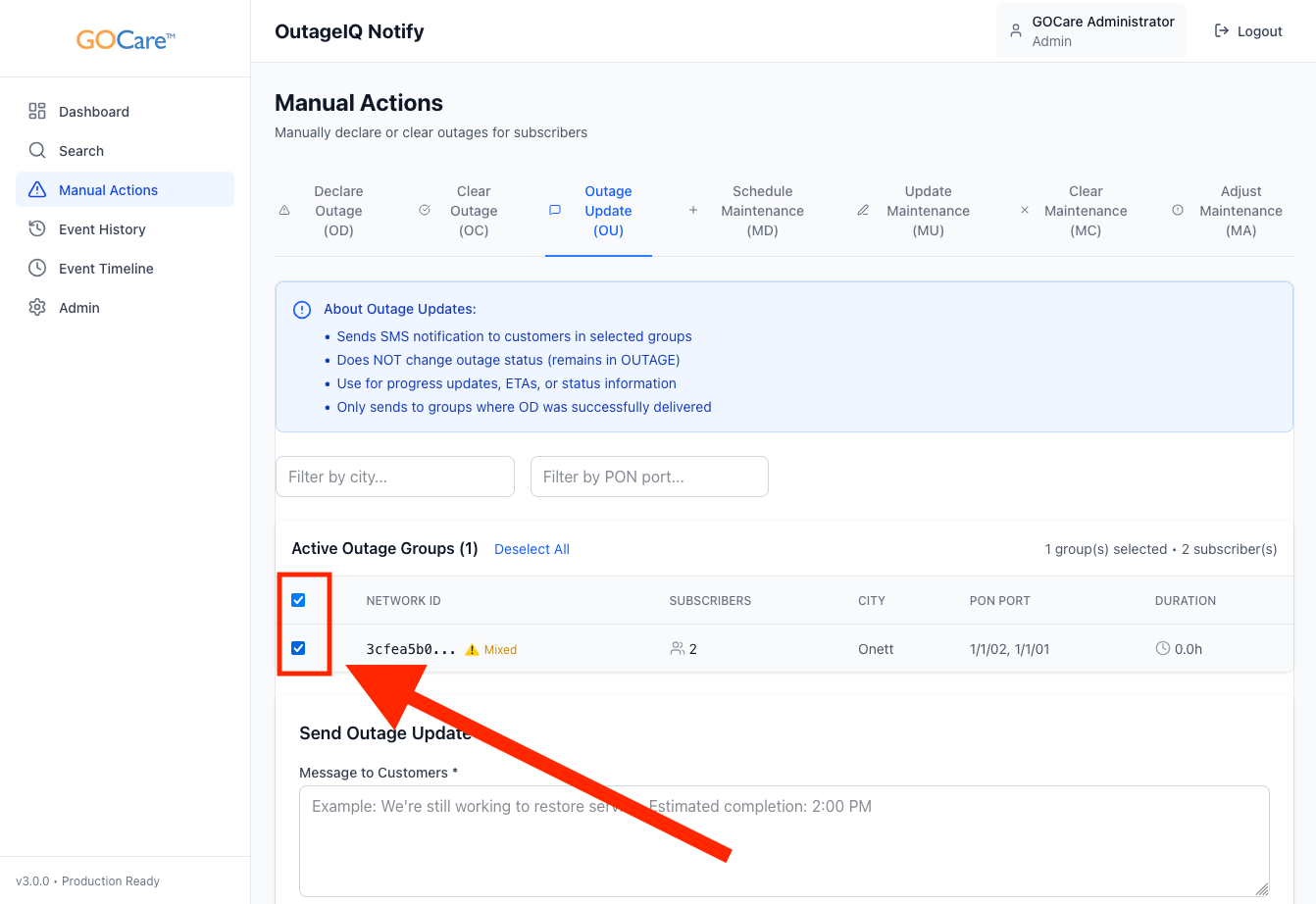
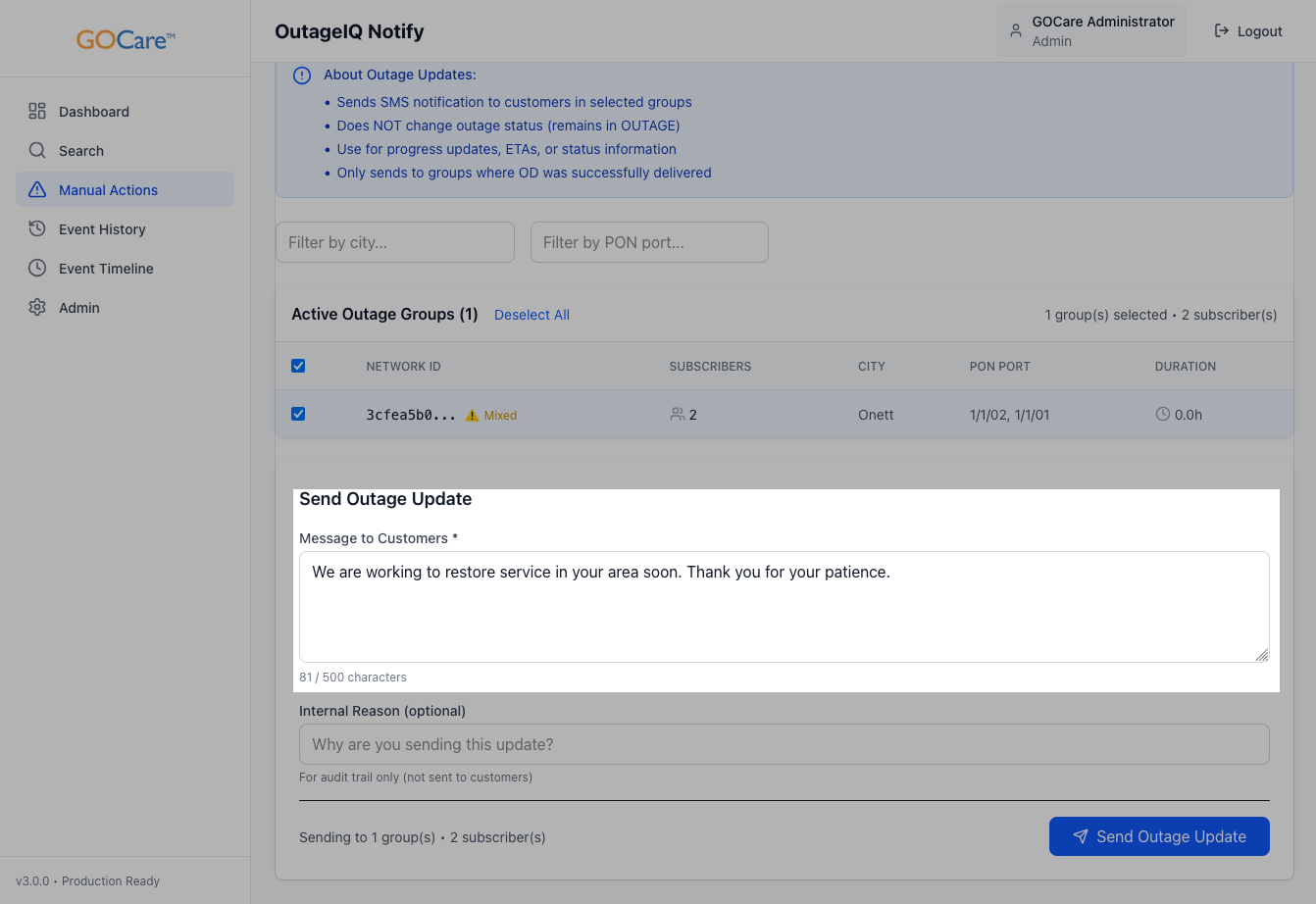
Enter an update message.
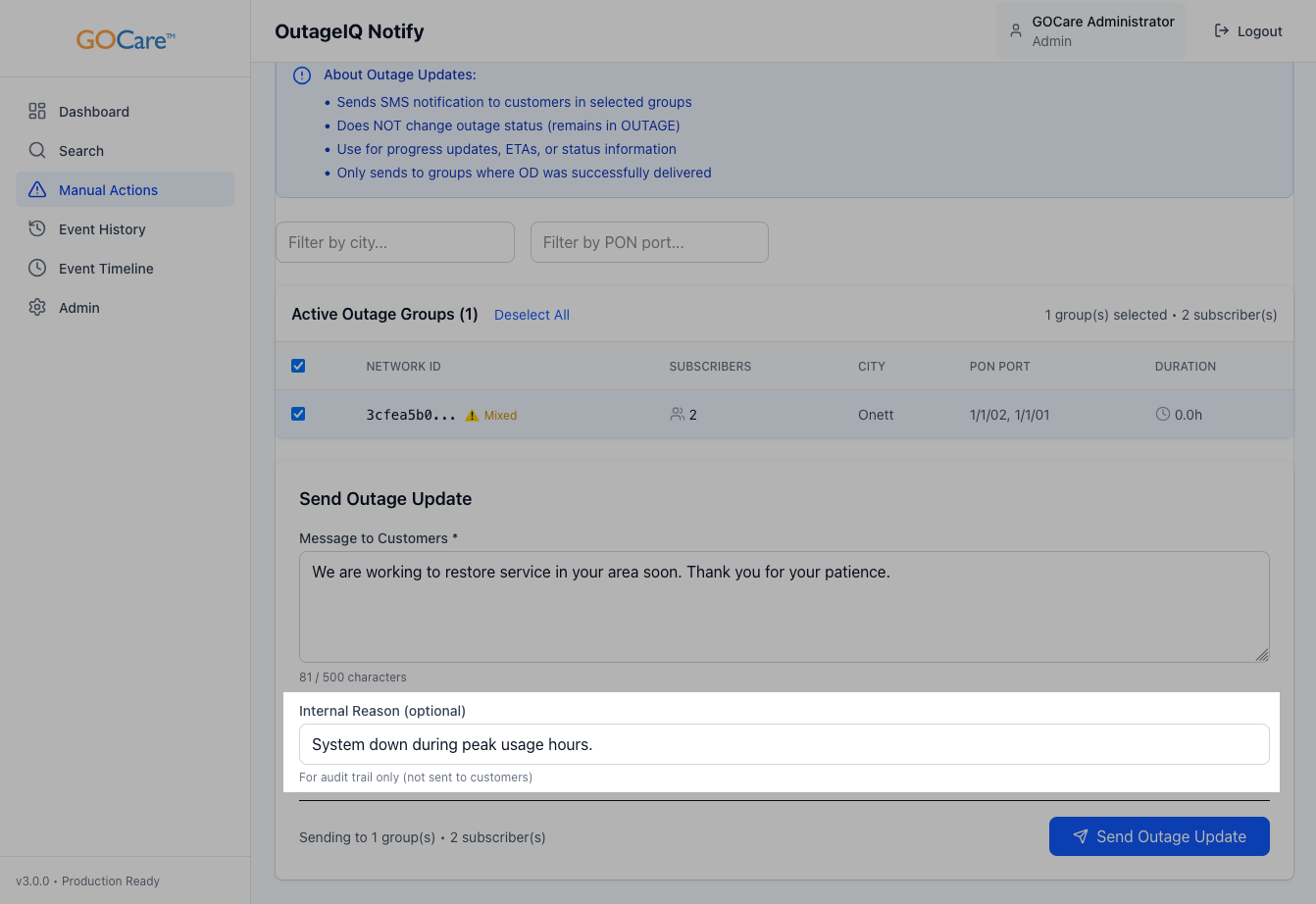
Provide an internal reason for the update (optional).
Review the information and select Send Outage Update.
A green success bar will indicate that the outage update has been submitted successfully.
Once submitted, the update is queued for processing and will appear in the Event Timeline and Event History.
Automated Outages
Outage Updates are available for both manually declared outages and outages that are declared automatically through webhooks. Regardless of how an outage is created, updates apply to the entire outage group and follow the same notification and timing rules.
Subscriber Keywords During an Active Outage
During an active outage, subscribers can interact with outage messaging by replying with specific keywords. These keywords help subscribers get information or control how they receive updates during that outage.
OUTAGE Keyword
If a subscriber replies with OUTAGE, the system checks OutageIQ to determine whether that subscriber is currently part of an active outage.
If the subscriber is actively in an outage, they receive an automated response confirming the outage status.
If the subscriber is not in an active outage, they receive a response indicating that no outage is currently affecting their service.
This keyword helps subscribers quickly verify whether an outage is impacting them without contacting support.
Opting Out of Updates for the Current Outage
OutageIQ also supports a keyword (such as NOUPDATES, defined during deployment) that allows subscribers to stop receiving further updates for the current outage.
When a subscriber uses this keyword:
They stop receiving additional outage update messages for the current outage
Their outage status in OutageIQ does not change
They will still receive the final outage clear message
Importantly, this opt-out applies only to the active outage. If a new outage or maintenance event is declared in the future, the subscriber will continue to receive notifications as normal.
What Happens After You Send an Update
After an outage update is submitted:
OutageIQ associates the update with the existing outage group
Subscriber status remains unchanged
The update appears in the Event Timeline and Event History
Notification timing follows your organization’s configured rules
Multiple updates can be sent during a single outage as new information becomes available.
💡 Tip: If customers are calling in for status, review the Event Timeline to confirm what updates have already been sent and when.
When to Use Outage Updates
Outage updates are best used when:
Restoration is taking longer than expected
New information becomes available
Estimated resolution timing changes
You want to reassure customers that work is still in progress
Outage updates should not be used to:
Declare a new outage
Notify customers that service has been restored
For restoration messaging, use Clear Outage instead.
Best Practices
Send updates only when there is meaningful new information to share.
Avoid sending frequent updates without new details, which can create confusion.
Keep update messages clear, concise, and consistent.
Remember that updates apply to all subscribers in the outage group.
Coordinate with operations and support teams to ensure consistent messaging.
💡 Tip: Establish internal guidelines for how often updates should be sent during extended outages to keep communication consistent across teams.