
Clearing an Outage – GOCare OutageIQ
Quick Summary
Clearing an outage in OutageIQ updates impacted subscribers to a normal service state and prepares the system to send “outage cleared” notifications, when applicable. Clearing actions operate at the group level, not individual subscriber level.
Introduction
Once service has been restored, operators use OutageIQ to clear active outages. Clearing an outage tells the system that subscribers within an outage group are no longer impacted. OutageIQ updates their status back to normal and prepares the event for outbound notification according to your organization’s configured timing rules.
Clearing an outage is a controlled action. OutageIQ ensures that the outage was properly declared, processed, and eligible for clearing before allowing the clear event to proceed. This helps avoid confusing or contradictory messages for subscribers and ensures the accuracy of the system’s historical records.
How Clearing Works
OutageIQ groups subscribers based on the outage event in which they were originally included. When you clear an outage, you are clearing the entire group, not individual subscribers. This maintains communication consistency and prevents partial or incomplete clears.
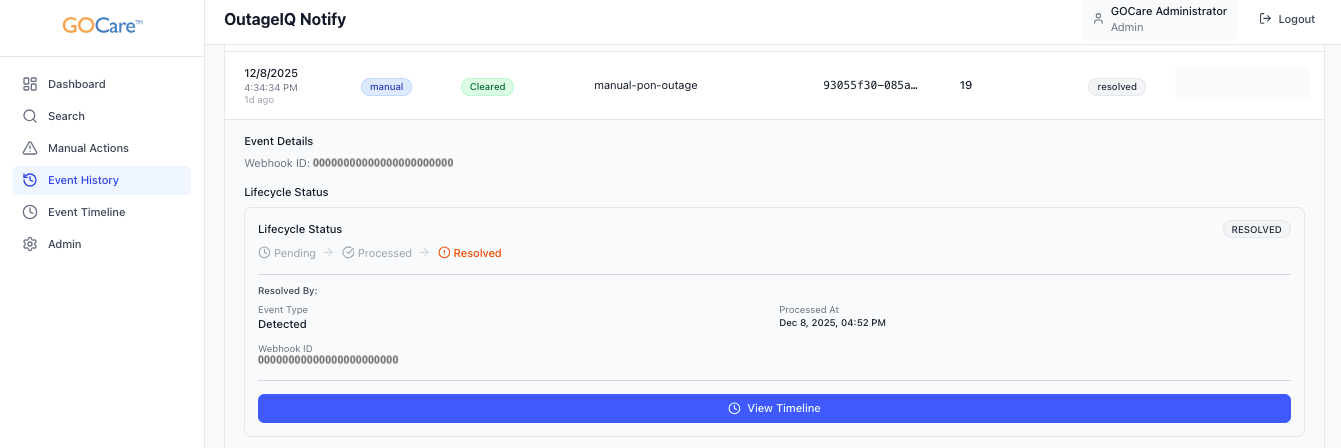
Cleared outages appear in the Event Timeline and Event History, reflecting the full lifecycle of the outage.
How to Clear an Outage
To clear an active outage group, follow these steps:
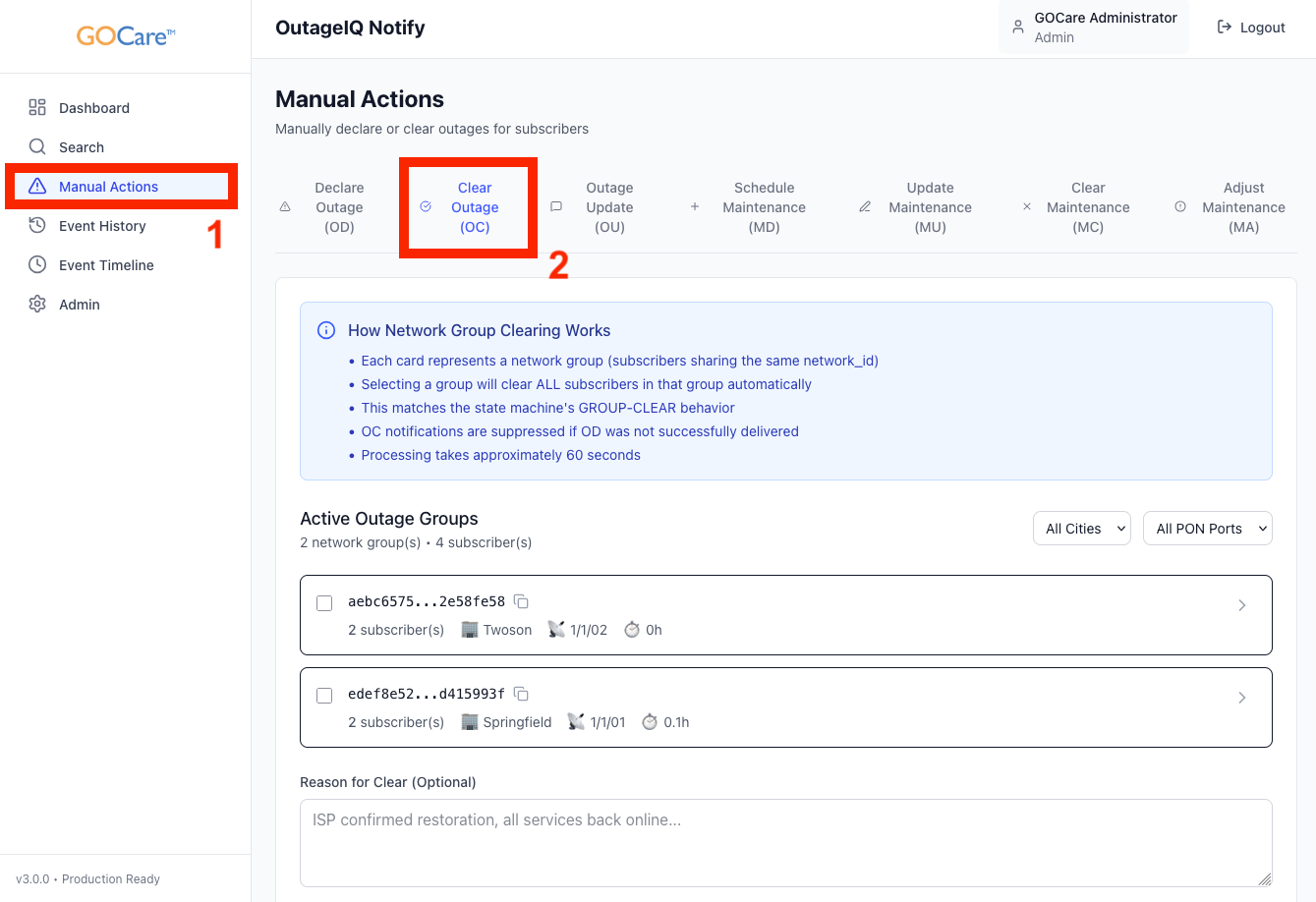
Select Manual Actions from the OutageIQ sidebar.
Choose Clear Outage (OC) from the manual actions menu.
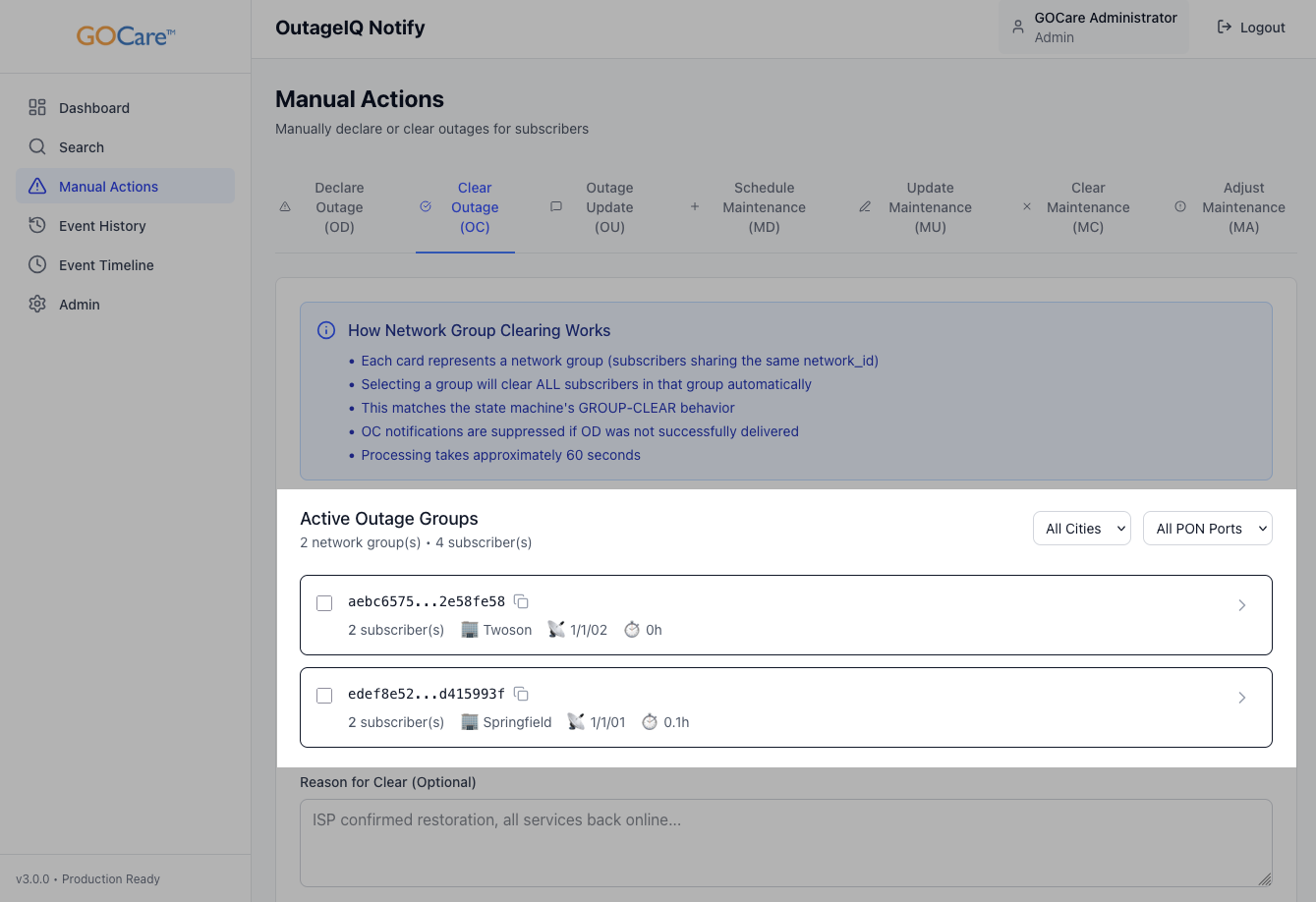
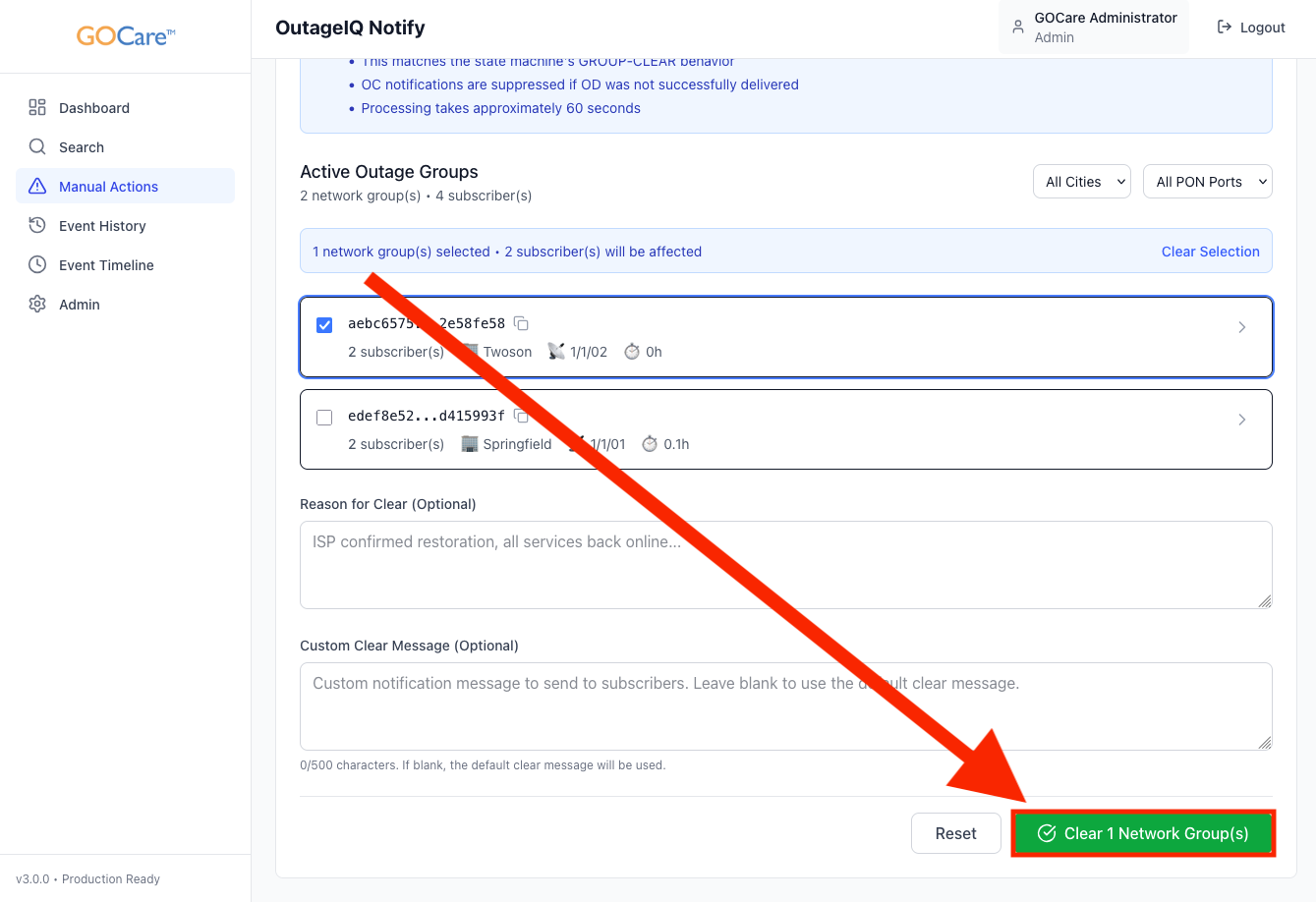
A list of active outage groups appears. These groups represent all subscribers included in the original declaration.
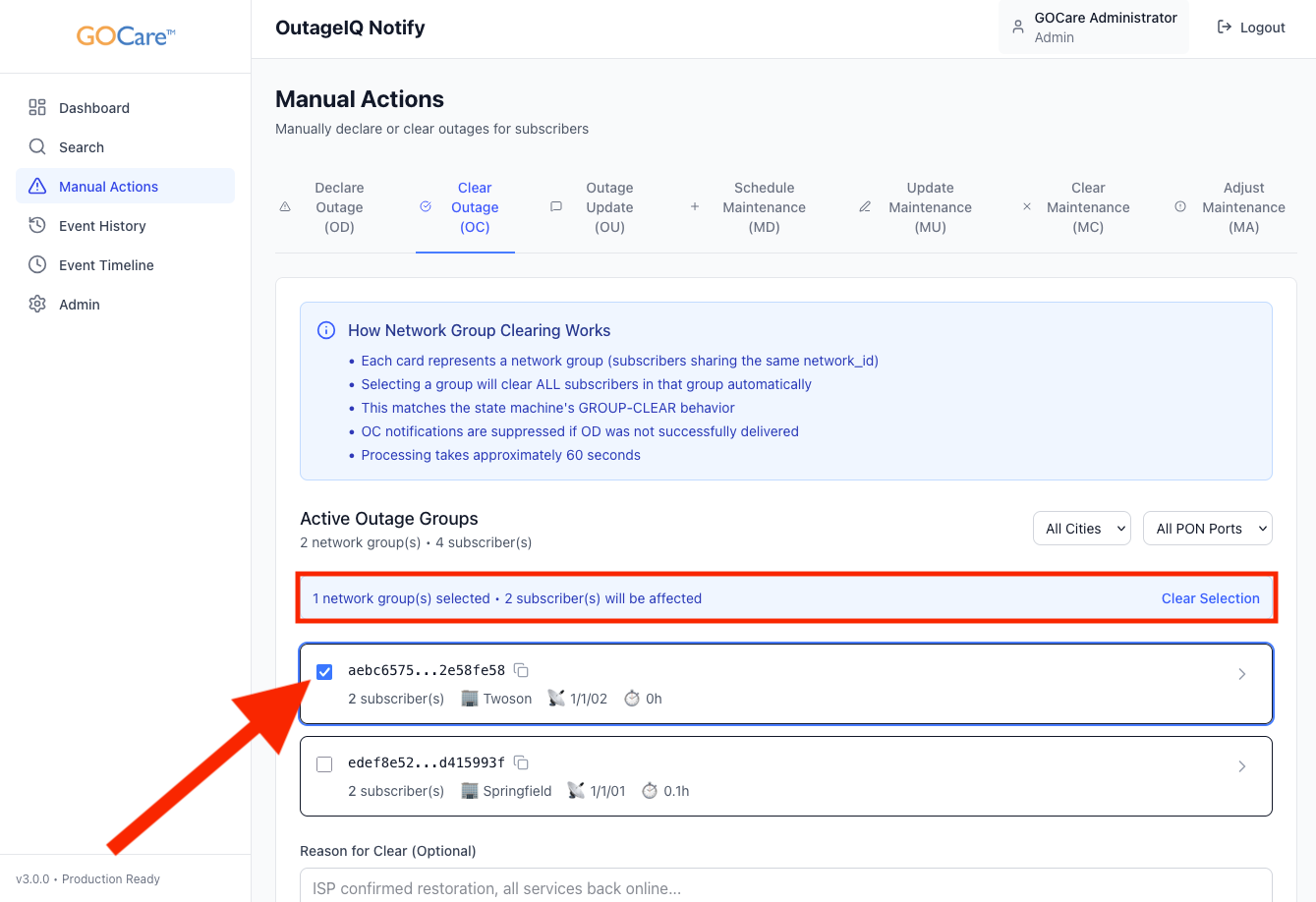
Select the outage group(s) you wish to clear. OutageIQ displays details about the group, including the number of affected subscribers.
Provide an optional internal note explaining the reason for the clear, early restoration details, or other operational context.
If desired, provide a custom clear message to send to subscribers. Leave this field blank to use the default clear message.
Review the information and select Clear Network Group(s).
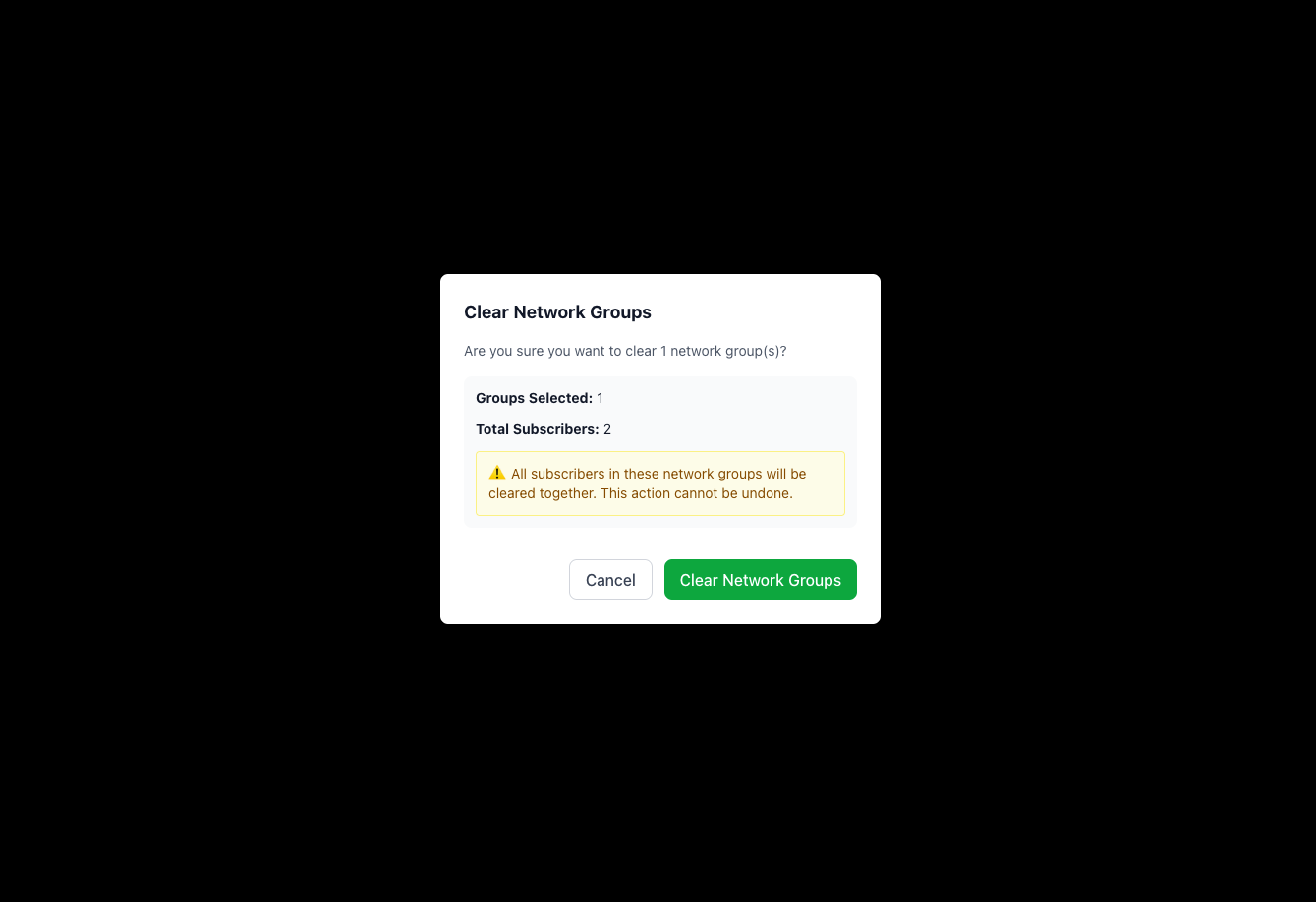
OutageIQ will display a confirmation message asking you to verify that clearing this outage is correct. Select Clear Network Groups to proceed.
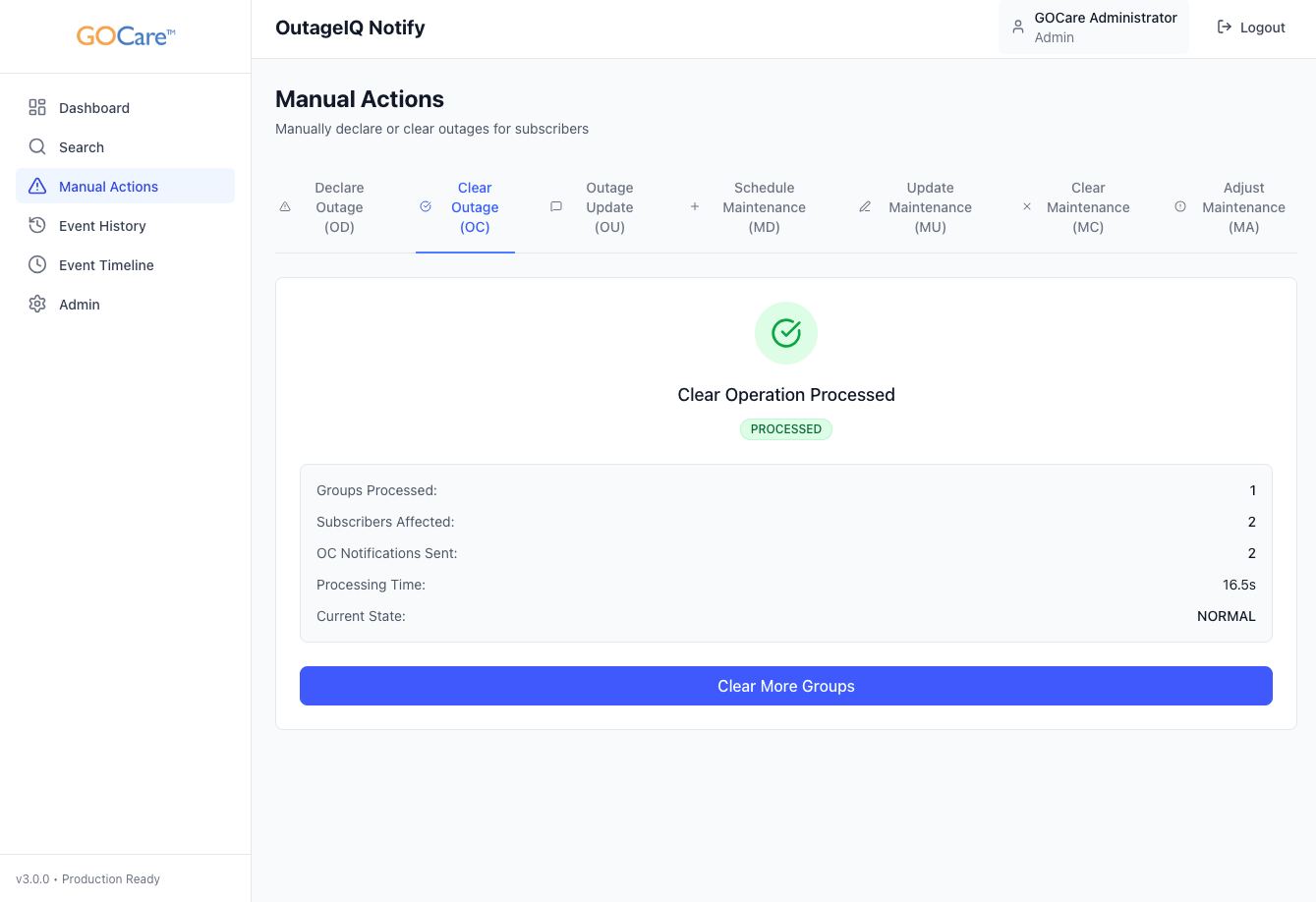
Once submitted, the clear event is queued for processing and will appear in the Event Timeline when complete.
Understanding Clear Behavior
When an outage is cleared:
• All subscribers in the selected outage group are updated from OUTAGE to NORMAL.
• A “clear” notification is prepared and sent according to configured timing rules.
• Operators can see the clear event in the Event Timeline and Event History.
OutageIQ ensures the clear event follows proper logic:
A clear will not send if the original “outage detected” notification was suppressed or never delivered.
The system will not allow clearing if network monitoring data indicates the outage is still active.
Partial clears (individual subscribers) are not supported to avoid inconsistent communication.
💡 Tip: If subscribers call in reporting continued issues, verify their outage status with the Subscriber Search page. If they remain in OUTAGE after a clear, they may belong to a different outage group or the network may still be reporting an issue.
When You Cannot Clear an Outage
Certain outages cannot be cleared manually:
• Webhook-only outages that are configured to require a corresponding webhook “clear” signal.
• Outages where the system has detected conflict or outdated state information.
• Events where the original outage notification was never successfully sent (clear suppression rule).
In these scenarios, OutageIQ prevents manual clearing to protect subscribers from receiving inaccurate messaging.
ℹ️ Note: If an outage cannot be cleared manually but service has been restored, operators should confirm with their network monitoring team whether a clear webhook needs to be sent.
Force Clear
Force clear is an emergency action that immediately resets all subscriber states within an outage group without going through OutageIQ's standard clear process. Because it bypasses normal clear logic, OutageIQ does not receive an Outage Clear (OC) signal, meaning any active Outage Update (OU) messaging will continue until the outage is manually resolved by GOCare Support.
Force clear should only be used if the standard clear mechanism is failing and service has been restored. It is not a substitute for a standard outage clear.
If you perform a force clear:
Contact GOCare Support immediately so we can manually suppress any active outage messaging associated with the declaration.
Do not assume that messaging will stop automatically, it will not.
Be prepared to provide the Network ID and Outage XREF from your notification emails if available.
Best Practices
Always confirm that service has been restored before clearing an outage group.
Review the outage group information to ensure you are clearing the correct event.
Use internal notes to document restoration details for future reference.
If an outage was declared automatically (webhook), coordinate with your network team to ensure clear behavior aligns with system design.
Avoid clearing outages prematurely. Doing so may suppress planned updates or confuse subscribers.
If a force clear is necessary, notify GOCare Support immediately to prevent continued outage messaging.